Tech Box 71 Injector FF APK Download Newest For Free

Description
Free Fire players often look for tools that bring fresh features to their matches. The Tech Box 71 Injector is a name that has appeared in community discussions. This guide covers its likely functions, installation methods, and practical considerations for Android users.
What is Tech Box 71 Injector?
Tech Box 71 Injector is a third-party utility designed for Free Fire on Android. It functions as an external panel that runs alongside the game. Independent developers create these tools, not the game’s official team. The APK requires manual installation outside standard app stores. Users typically open the panel before launching Free Fire to select their preferred options. Also try the Timplodino Injector for more incredible features and in-game items.
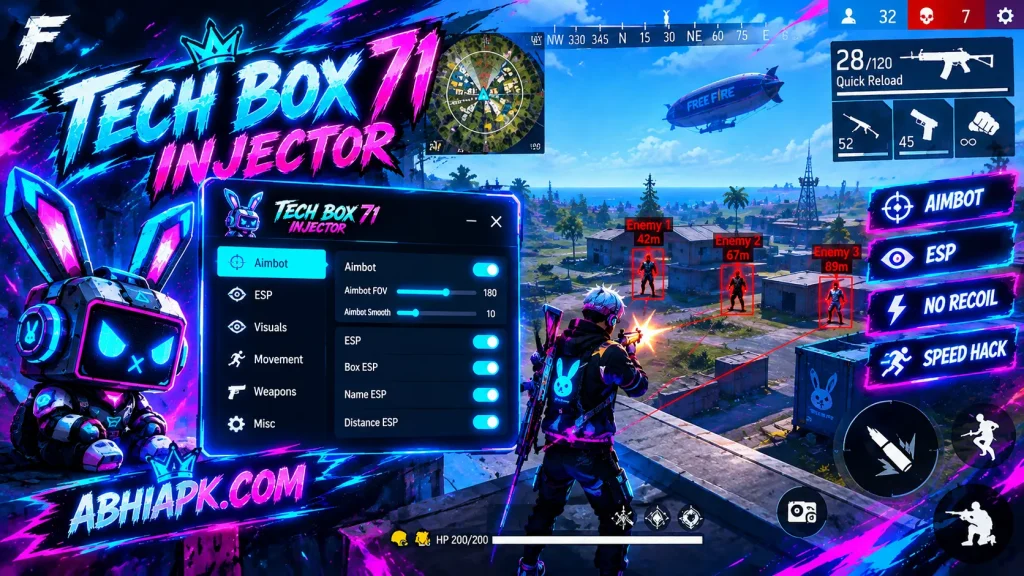
Core Feature Categories in Tech Box 71 Injector
Based on the common design of similar tools, the Tech Box 71 Injector likely includes several module types.
Visual Information Layers:
These options add on-screen markers or highlights to the game environment. They aim to give users a different view of nearby objects or movement. The panel usually lets users toggle each visual element separately.
Control and Sensitivity Tuning:
Finding the right touch response can be difficult. Such tools often provide preset profiles or manual sliders. Players can adjust aiming feel and swipe behavior to match their device and style.
Appearance Customization:
Many injectors include options to change how items look. This covers character outfits and weapon finishes. These changes usually appear only on the user’s screen.
Performance Adjustment Options:
Some panels bundle tweaks aimed at smoother frame delivery. These may include graphics adjustments or process optimizations. The goal is to reduce stutter during matches.
Quick-Access Menu:
A floating panel or separate dashboard is standard. Users enable or disable modules with simple toggles. The layout is usually clean and easy to navigate.
How to Inject Tech Box 71 FF APK?
Setting up the tool follows the usual sideloading pattern. Each step needs attention.
Step 1: Prepare the Device
Go to Settings > Security. Enable “Install from unknown sources.” This allows the phone to install APK files from outside official stores.
Step 2: Download and Install
Get the APK file from a distribution page. Tap the file and follow the prompts. The app icon appears on your device when finished.
Step 3: Open the Panel
Launch Tech Box 71 Injector. Grant the permissions it requests. Select Free Fire from the target list. Choose the modules you want active.
Step 4: Restart the Game
Make sure Free Fire is fully closed. Reopen the game. The selected changes apply in the new session.
Ways to Inject
Players use different methods depending on their setup.
- Direct Install: The standard route. Install the APK on your main phone and run it normally.
- Virtual Space Apps: Run the panel inside a sandbox app. This adds a layer of separation between the tool and your system.
- Spare Device: Use a second Android phone for testing. Your main profile stays separate from the tool environment.
- Emulator Testing: PC users can try the panel in an Android emulator first. This lets you observe behavior before using it on a phone.
Direct install remains the most common choice for most users.
Advantages of Tech Box 71 Injector
Supporters of these tools point to several appealing factors.
- Free Access: The APK is typically distributed without cost.
- Simple Interface: Toggle-based menus are easy to understand.
- Feature Variety: Options cover visuals, controls, and appearance.
- Small File Size: These tools usually take up minimal storage.
- Community Updates: Developers release new builds to match game patches.
- Centralized Controls: Everything sits in one panel, saving time.
Points to Consider
Users should also understand the limitations of such tools.
- Independent Product: No connection to the game’s official developers.
- Manual Installation: Requires enabling unknown sources, bypassing store checks.
- Feature Lifespan: Modules may stop working after major game updates.
- Permission Requests: The app may ask for device access; review each one.
- Community Support Only: No official help desk for troubleshooting.
- Device Variability: Performance differs across phone models and Android versions.
Practical Habits for Smoother Use
If you explore this tool, these habits can help.
- Update Before Playing: Check for a new build after every game patch.
- Enable Few Modules: Start with one or two options to gauge effects.
- Close Background Apps: Free up memory before launching the panel.
- Clear Cache When Stuck: Wipe app data if the menu freezes.
- Follow Community Threads: Forums share fixes and configuration tips.
- Test on a Spare Profile: Try new versions on a secondary account first.
Device Compatibility Reference
These tools generally support a wide range of Android hardware.
- System Version: Android 5.0 and above.
- Storage: Usually under 50MB of free space needed.
- RAM: 3GB or more for smooth operation alongside the game.
- Processor: Works with most mid-range chips and above.
- Display: Adapts to various screen sizes and resolutions.
Community Feedback Patterns
Discussions around similar tools often show mixed experiences. Some users appreciate the control over sensitivity and visuals. Others note that features break after game updates. Performance varies by device—newer phones handle the panel better than older models. The community aspect is strong, with users sharing configurations and workarounds in dedicated groups.
Common Issues and Quick Fixes
Problems sometimes appear during use. Here are simple remedies.
- Panel Not Loading: Clear app cache and restart the phone.
- Options Not Applying: Confirm Free Fire is fully closed before injection.
- Game Stutters: Reduce the number of active modules.
- Outdated Build: Download the newest version from a trusted page.
- Permission Errors: Check that all requested permissions are granted.
Most issues resolve with a restart or fresh download.
Frequently Asked Questions
Q1: Is Tech Box 71 Injector free?
Yes, these tools are generally distributed at no cost.
Q2: Does Tech Box 71 Injector need root access?
Most modern versions work on non-rooted Android devices.
Q3: Can I use Tech Box 71 Injector on iOS?
No, it is an Android-only APK.
Q4: How often is it updated?
Developers release new builds periodically to match game patches.
Q5: Will it slow down my phone?
The tool is lightweight, but running it with the game may affect older devices.
Q6: What if a feature stops working?
Download the latest build released after the game update.
Q7: Is there official support?
No, help comes from community forums and groups.
Q8: Can I try Tech Box 71 Injector on an emulator first?
Yes, PC emulators let you test the panel before using it on a phone.
Conclusion:
Tech Box 71 Injector offers Free Fire players a centralized panel for visual, control, and appearance adjustments. Its simple layout and free access make it easy to explore. The tool runs on most Android devices and includes community-driven updates. While its features depend on the developer’s pace after game patches, the panel provides a structured way to personalize your gameplay. Use it with reasonable expectations, keep it updated, and enjoy a more customized battle royale experience.